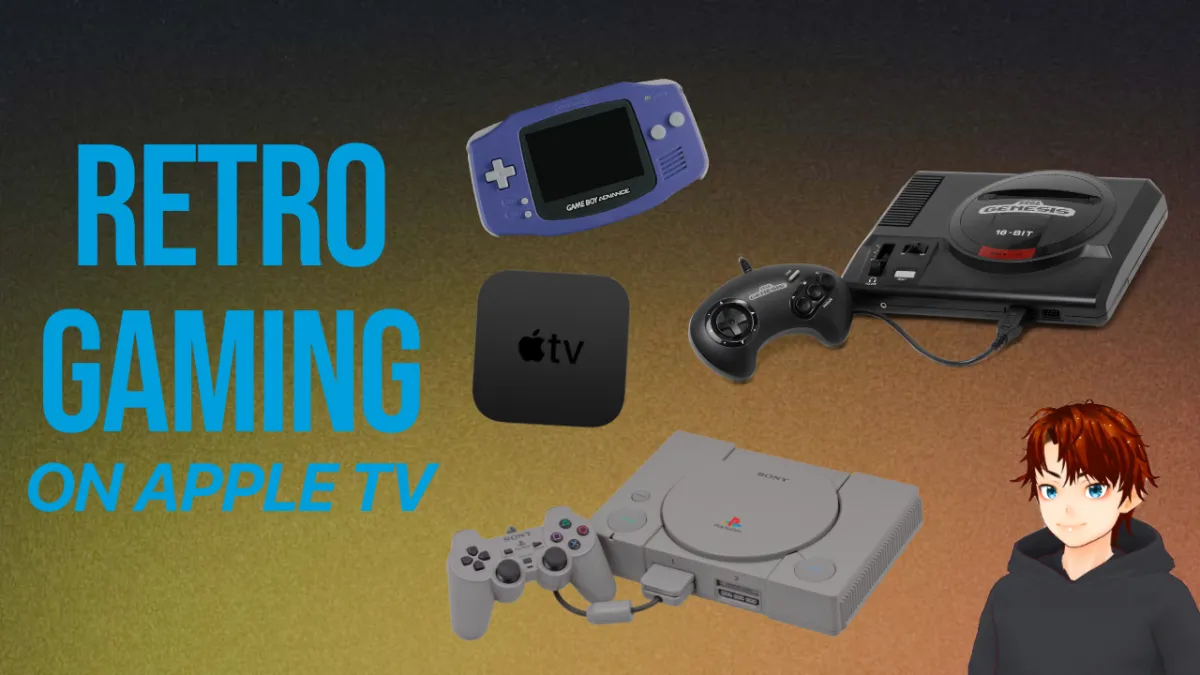
Apple TV Retro Gaming in 2026: RetroArch Setup + Performance Test
With RetroArch available right in the App Store, you can turn your Apple TV into a living-room retro console with a controller you probably already own. I tested a few systems to see what actually runs smoothly, what feels borderline, and what just isn’t worth the hassle.
This isn’t a pro gamer guide. It’s simple to set up, easy to pick up, and fun to show friends.
What you need
Here’s the basic gear I used:
- Apple TV 4K (2nd gen)
- RetroArch (downloaded directly from the App Store)
- Xbox controller (paired over Bluetooth)
- A computer (only needed to transfer ROM files onto the Apple TV)
Setup walkthrough
If you’ve avoided emulation setups in the past because they felt “too technical,” this one is surprisingly approachable.
1) Install RetroArch
This is the best part. No sideloading. No weird workarounds.
- Open the App Store on Apple TV
- Download RetroArch
- Launch it and you’re basically ready to start configuring
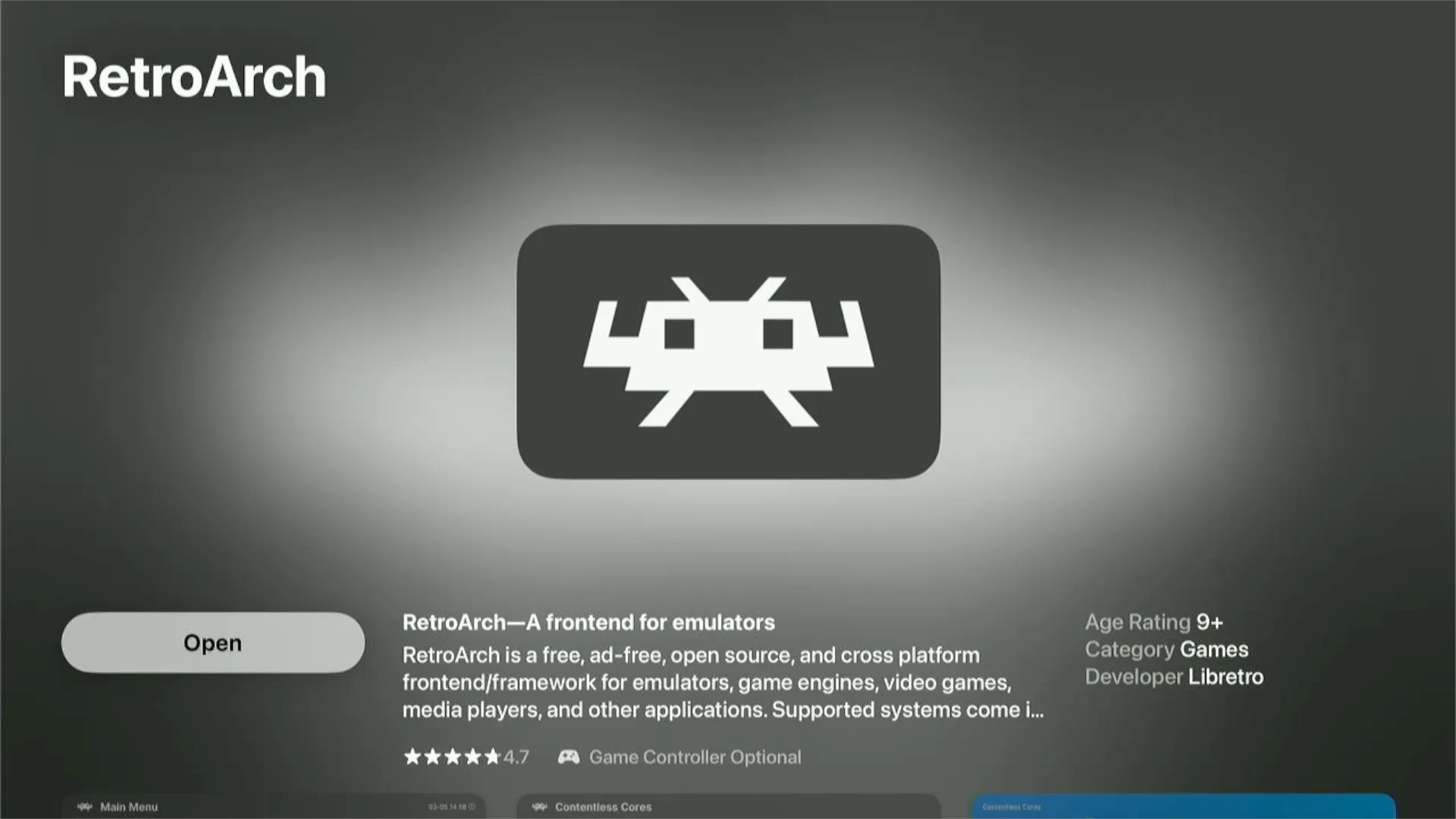
For me, it was very straightforward. No technical knowledge required.
Time estimate: You can be up and gaming in about 15 minutes if you already have your ROM files ready.
2) Pair a controller
Pairing was painless.
- On Apple TV, go to Settings → Remotes and Devices → Bluetooth
- Put your Xbox controller in pairing mode (press the pair button until the Xbox logo flashes)
- Select the controller under Other Devices
- Confirm pairing
I didn’t run into any connection issues. For me, it basically just worked.
3) Load ROM files onto the Apple TV
This part is the “bridge” between your computer and the Apple TV.
When you open RetroArch on Apple TV, it gives you a link you can visit on your computer. When you go to that address in a browser, it opens a simple file browser.
- Navigate to that address on your computer
- Upload your game files
- Return to the Apple TV and launch the games in RetroArch
File management tip: Make folders for each console inside the downloads folder and organize your ROMs that way. It saves you from digging through one giant pile later.
Performance test results
This is what I actually cared about: does it feel good in real use?
Quick summary: Genesis ✅ · GBA ✅ · PS1 ✅ · PSP ❌ (crash)
Sega Genesis (Sonic)
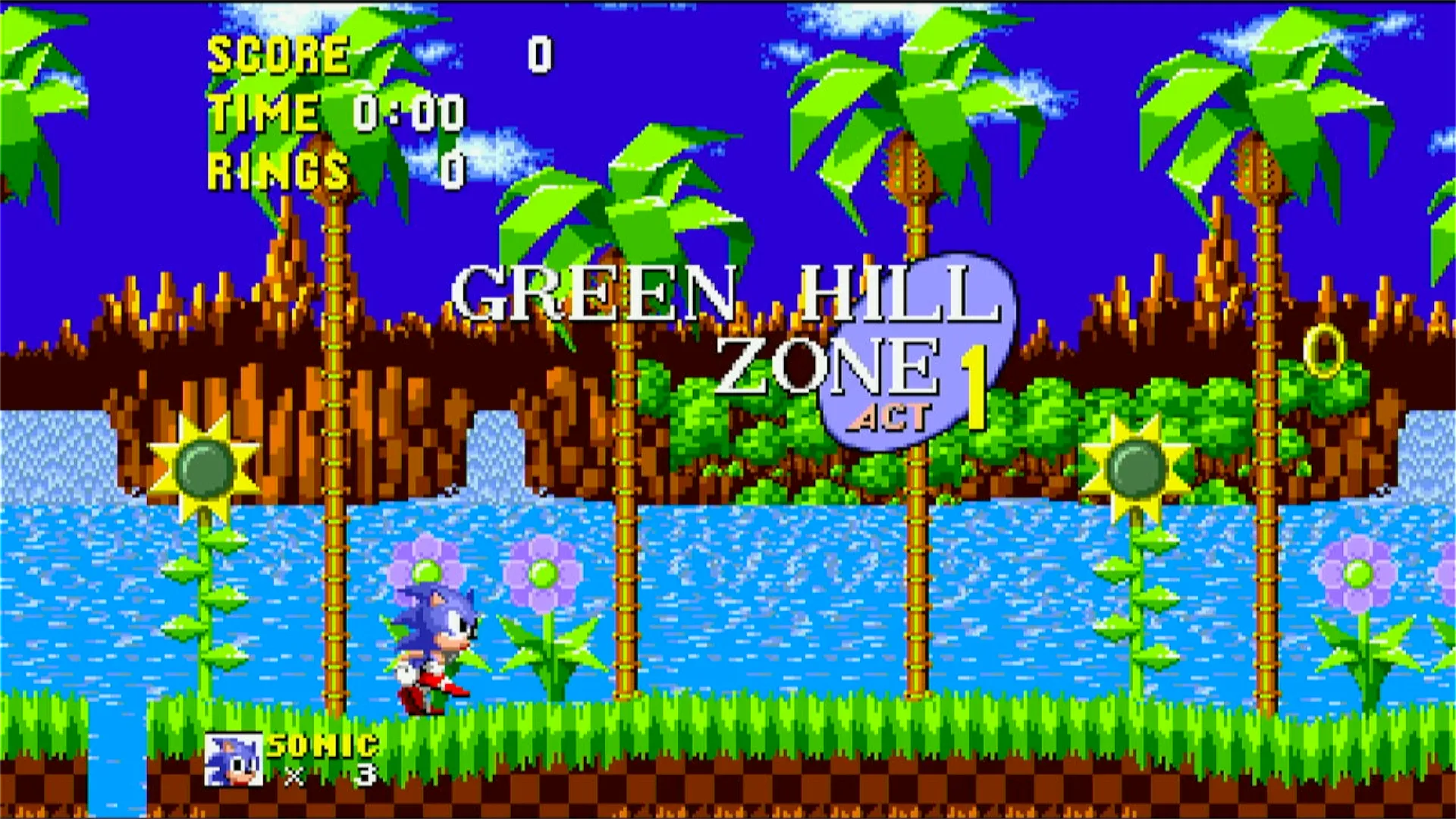
- Performance: Super smooth
- Load times: Pretty quick
- Lag / frame drops: I didn’t notice any, and I didn’t even touch graphics settings
Honestly, I got sucked into Sonic for a bit longer than planned, which is probably the best sign you can get.
Game Boy Advance (Pokémon Leaf Green)
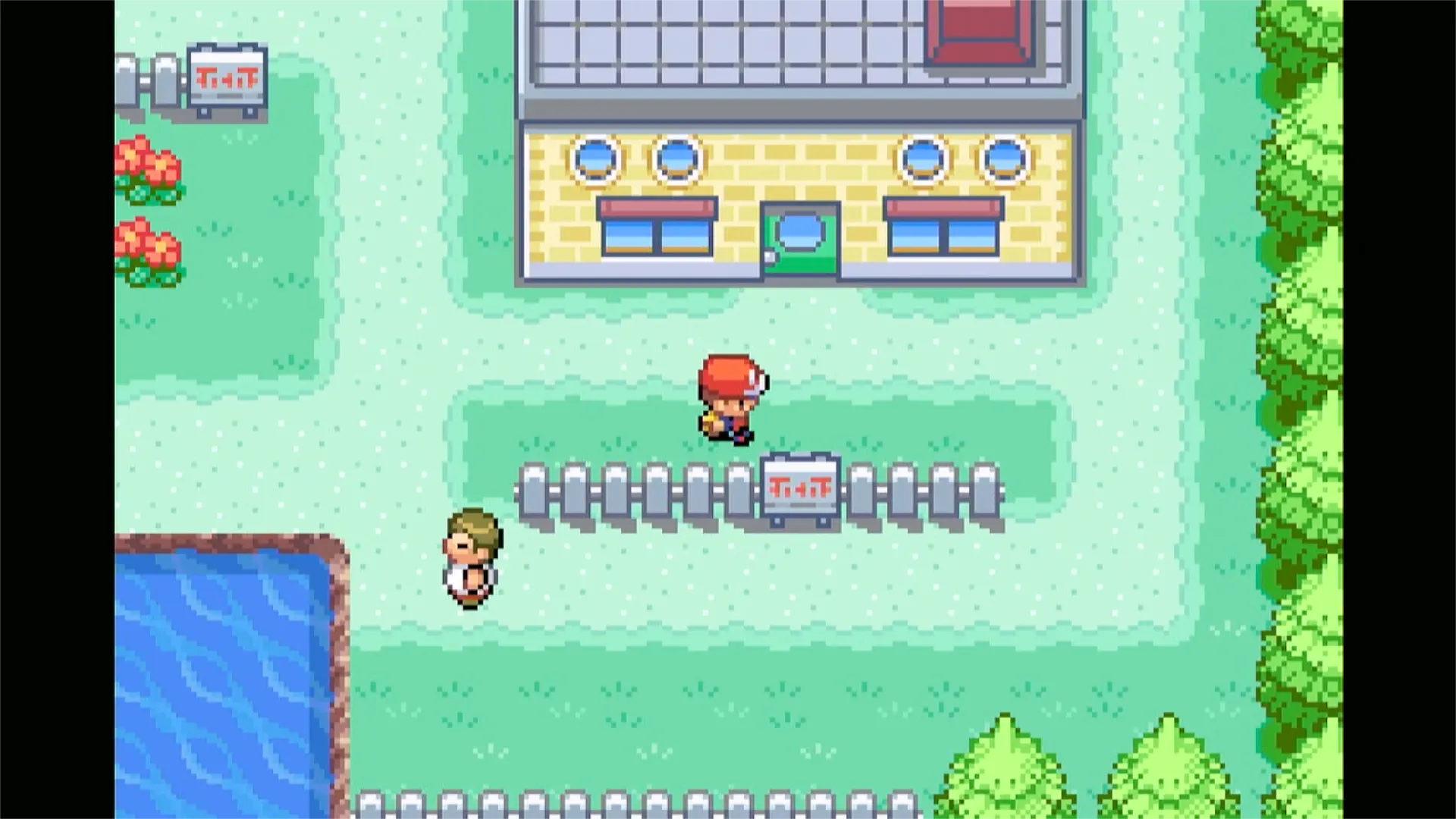
- Performance: Performed well
- Audio: No issues
- Quality-of-life bonus: I loved being able to fast forward through long text walls using the trigger button
If you want something you can casually jump into on the couch, this is a great fit.
PS1 (Spyro the Dragon)
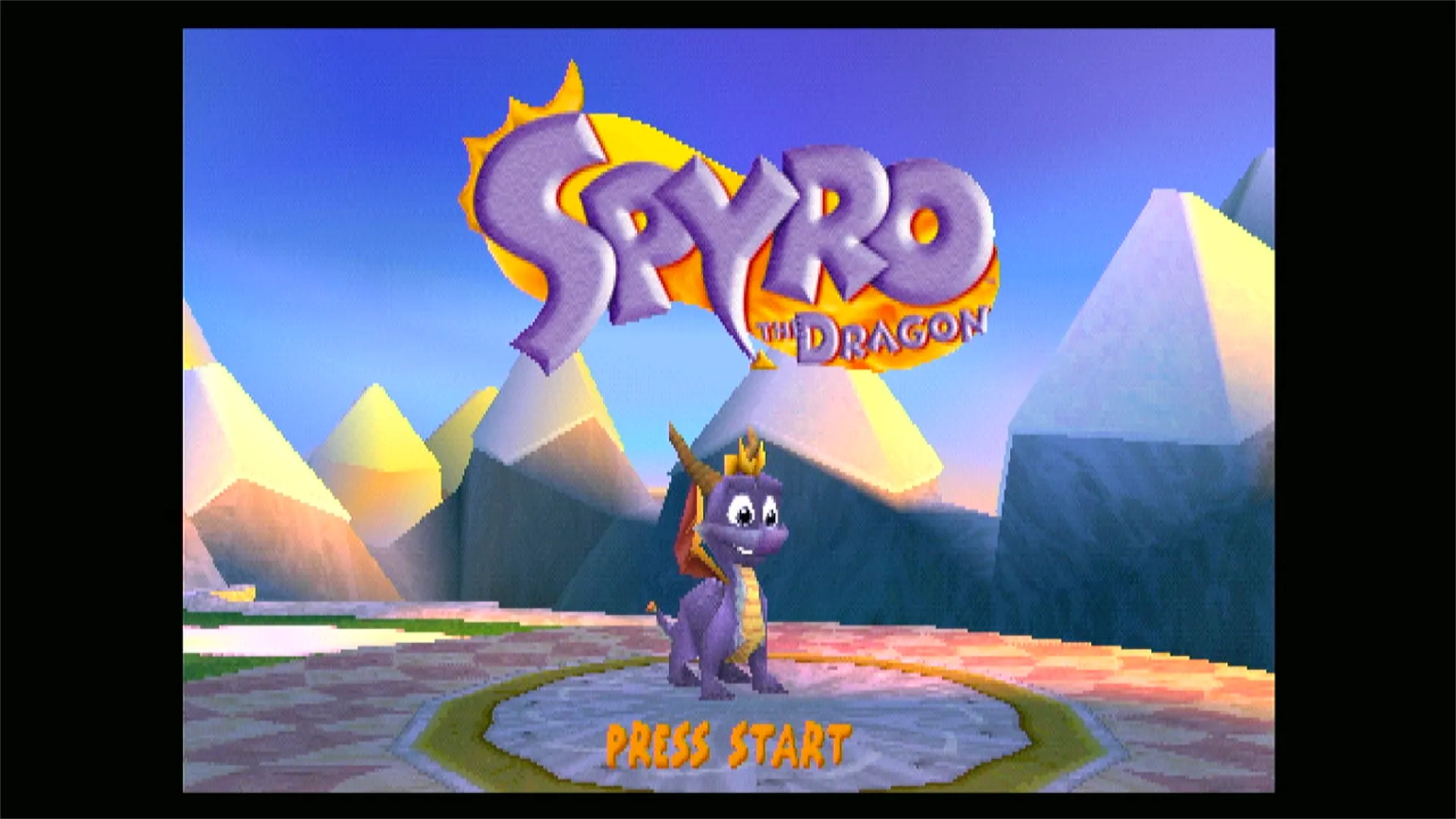 This one surprised me.
- Performance: Better than expected
- Startup: PS1 launched right away
This is the kind of result that makes the whole setup worth it. Spyro is one of those games that instantly takes you back, and having it run on the Apple TV in the living room feels almost ridiculous in the best way.
PSP (God of War)
- Result: The game couldn’t even open
- What happened: RetroArch crashed
- Conclusion: PSP is not viable here (at least not in my test)
What works, what doesn’t
If you’re thinking about doing this, here’s the practical takeaway.
What works great:
- 16-bit era systems (like Genesis) feel smooth and console-like
- GBA is a great handheld baseline, and fast-forward is a nice bonus
- PS1 (at least with Spyro) performed better than expected and launched immediately
What to skip (based on my test):
- PSP (God of War) was a no-go and crashed RetroArch
Best use case:
If you want classic nostalgia and a simple living-room setup you can dip into whenever, the Apple TV + RetroArch combo is a great addition.
Affiliate link (Apple TV): https://amzn.to/4tCUPbk